Quick start
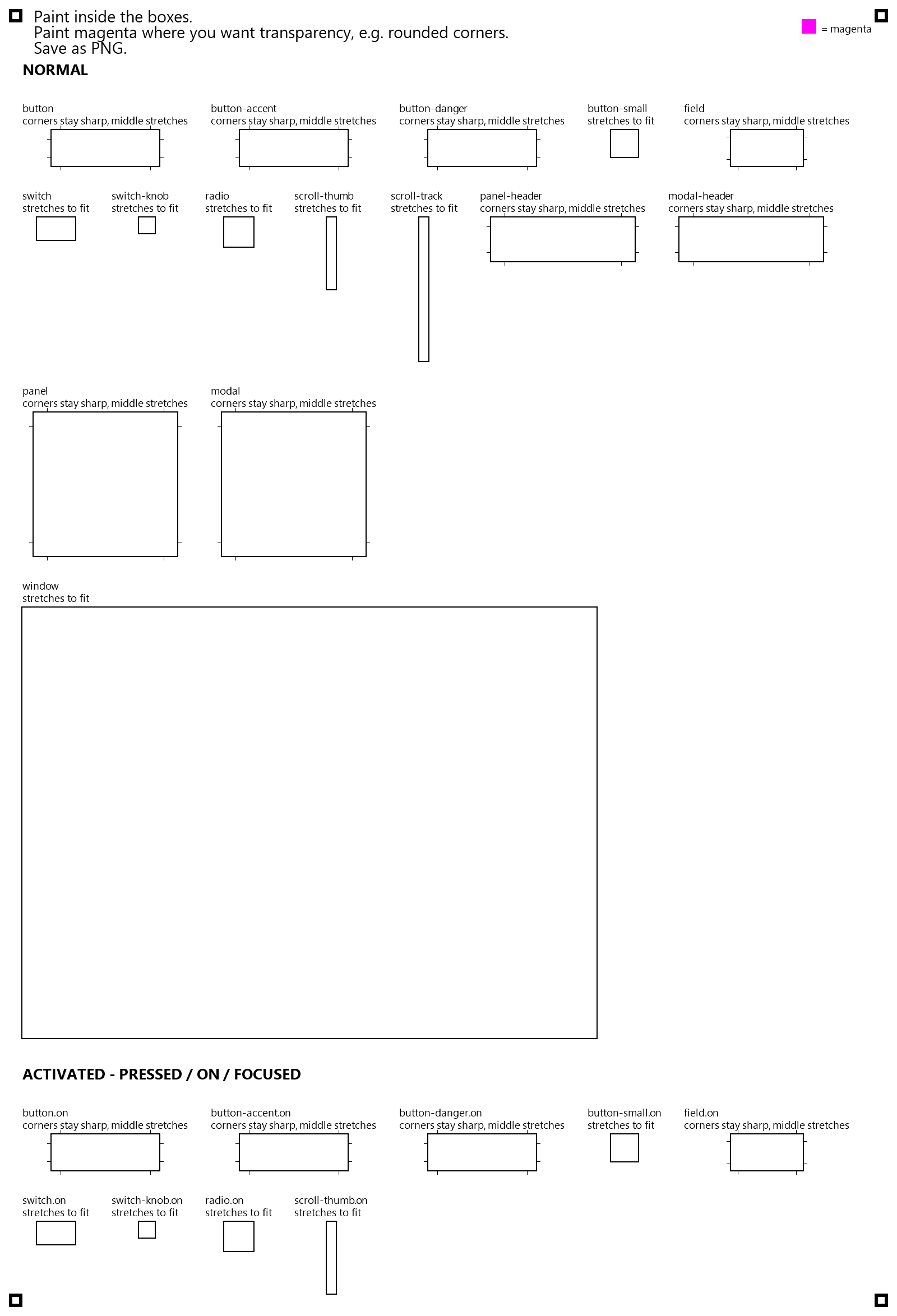
- Download the UI template below (and the font template too, if you want your own lettering).
- Paint inside the boxes in any image editor — Paint, Krita, Photoshop, Procreate. Leave a box white to skip that piece.
- Paint magenta (#FF00FF) where you want see-through, like the area outside rounded corners.
- Upload your sheet in step 1, check the preview, and download your theme.
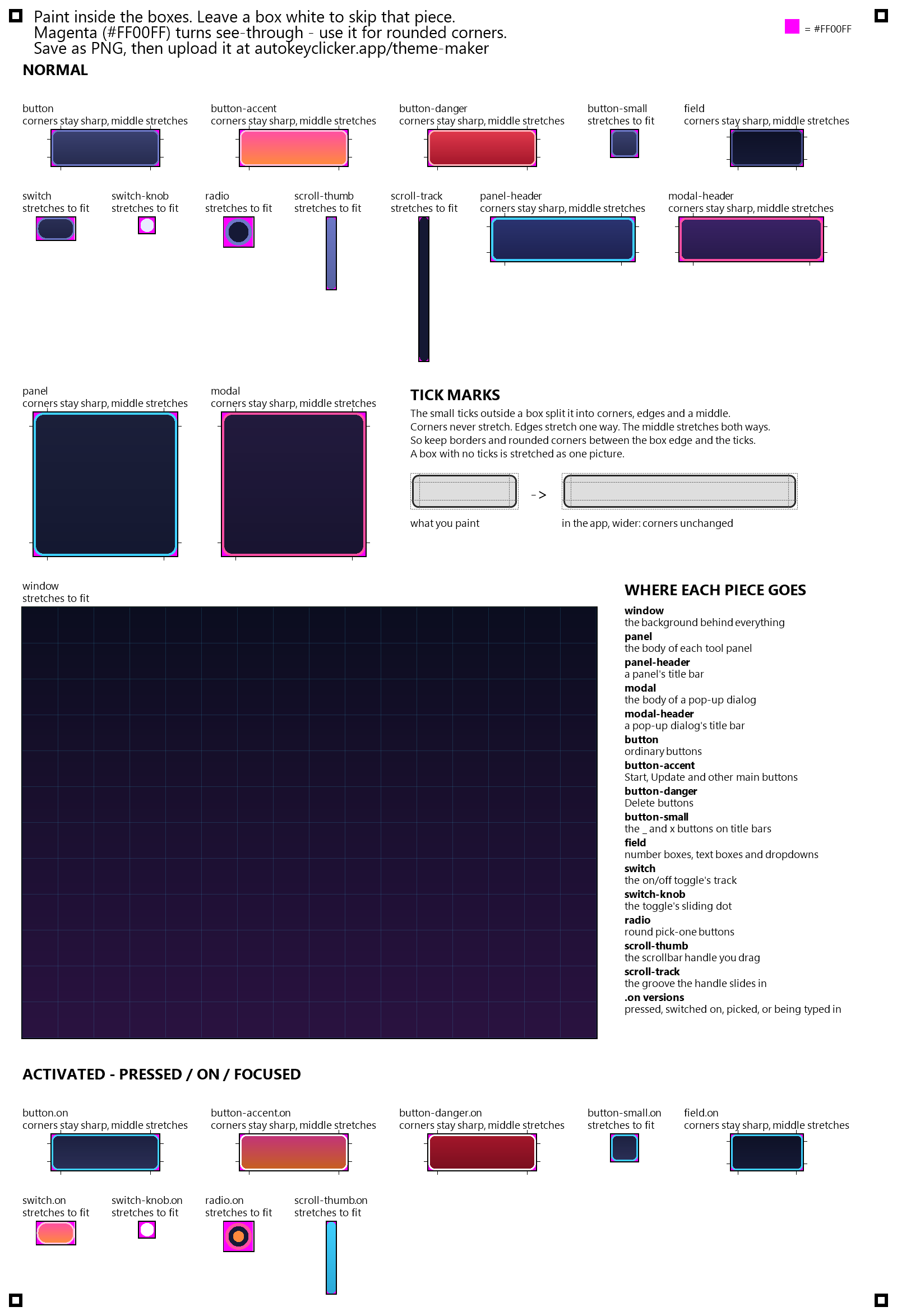
Not sure what a finished sheet looks like? to load one into the maker, or download the example sheet.
Guide
Which box is which?
Each box on the UI template is one part of the app. The .on boxes in the bottom half are the same parts while pressed, switched on, picked, or being typed in. In the preview below, tick Show piece names to see each one in place.
| Box | Where it shows up |
|---|---|
| window | The background behind everything |
| panel | The body of each tool panel |
| panel-header | A panel's title bar |
| modal | The body of a pop-up dialog |
| modal-header | A pop-up dialog's title bar |
| button | Ordinary buttons |
| button-accent | Start, Update and other main buttons |
| button-danger | Delete buttons |
| button-small | The _ and × buttons on title bars |
| field | Number boxes, text boxes and dropdowns |
| switch | The on/off toggle's track |
| switch-knob | The toggle's sliding dot |
| radio | Round pick-one buttons |
| scroll-thumb | The scrollbar handle you drag |
| scroll-track | The groove the handle slides in |
What do the little tick marks mean?
Buttons, panels, headers and fields get drawn at many sizes, so the app stretches them. The ticks outside a box show how: the corners (between the box edge and the ticks) never stretch, the edges stretch one way, and the middle stretches both ways. Keep borders and rounded corners in the corner zone and they stay crisp at any size.
Boxes with no ticks (switch, knob, radio, scrollbar, small buttons, window) are stretched as one picture, so paint them at the shape they'll be used at.
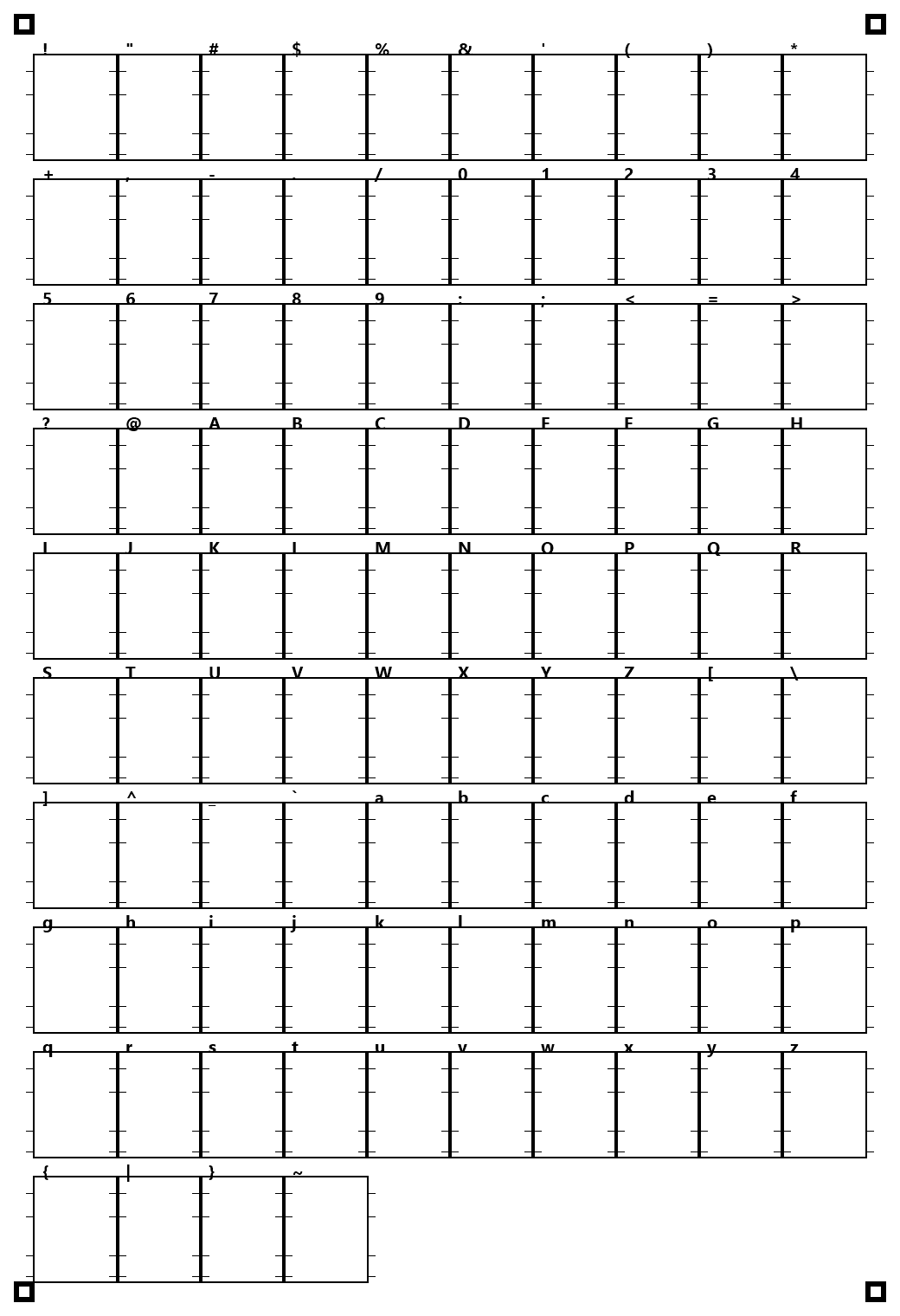
How do I fill in the font sheet?
One character per cell, drawn in dark ink on the white. The ticks on each side of a cell are guide lines, the same four in every cell, so your letters line up:
You need at least 10 readable characters. Any you leave blank use the app's normal font.
Tips and troubleshooting
- Keep all four corner squares visible. The maker finds your art from them, so resizing, a small crop, a slight tilt or a JPEG are all fine — covering or cropping a corner square is not.
- Use a hard edge where art meets magenta. Soft or anti-aliased edges blend into pinks the maker can't remove, which show as a pink outline. Pure #FF00FF works best.
- Bold beats fine detail. Pieces are shown at about half the size you paint them, so thin lines and tiny text get lost.
- You don't have to paint everything. Any box you leave white keeps the app's normal look, and the colors in step 3 still apply.
- "Couldn't find the template"? Check that all four corner squares are in the picture, not painted over, and that you uploaded the right sheet in the right step.
1Upload your painted UI sheet
PNG or JPEG. You need this one, the font sheet, or both.
2Upload your painted font sheet (optional)
Skip it to keep the app's normal font.
3Colors & name
Picked up from your sheet where possible — change anything.
4Preview
Drawn with the same rules the app uses.
ABCDEFGHIJKLM abcdefghijklm !@#$%^&*()
NOPQRSTUVWXYZ nopqrstuvwxyz {}[]<>-+=