Your download of AutoKeyClicker has started. Keep this page open and follow the steps below as each window comes up. Didn't start? Try again.
AutoKeyClicker for Mac
The same app as on Windows, set up in a few minutes. macOS asks you to confirm two things the first time; this page shows each one.
Installing
Works on macOS 10.15 Catalina or later, on Apple silicon and Intel Macs.
- Open the downloaded file (
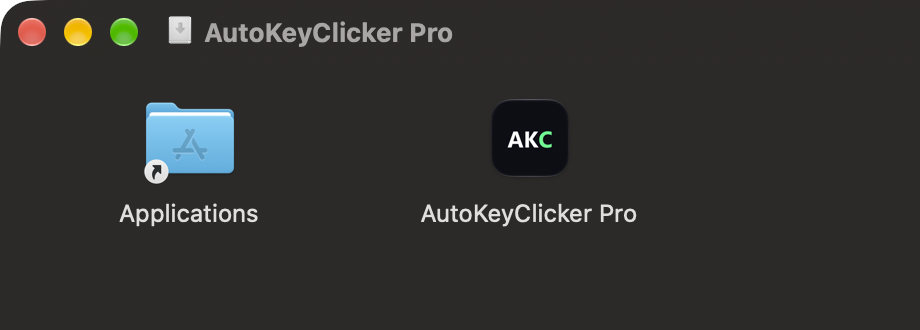
AutoKeyClicker-Pro-Mac.dmgorAutoKeyClicker-Free-Mac.dmg). - Drag AutoKeyClicker Pro (or Free) onto Applications in the window that opens.
- Open it from your Applications folder, not from that window. A copy started from the download window can't update itself.
Opening it the first time
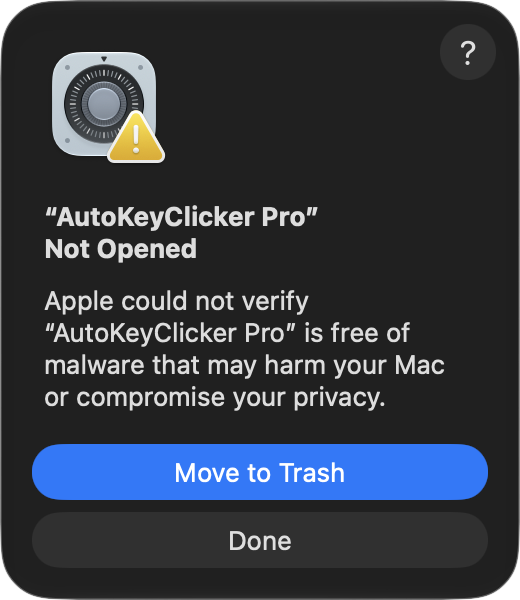
AutoKeyClicker is signed with its own certificate rather than one bought from Apple, so the first time you open it macOS says it can't check the app for malware and offers only to cancel or move it to the Trash. Nothing is wrong with the app: macOS says this about every app that isn't registered with Apple. You confirm it once:
- Click Done (or Cancel). Don't move it to the Trash.
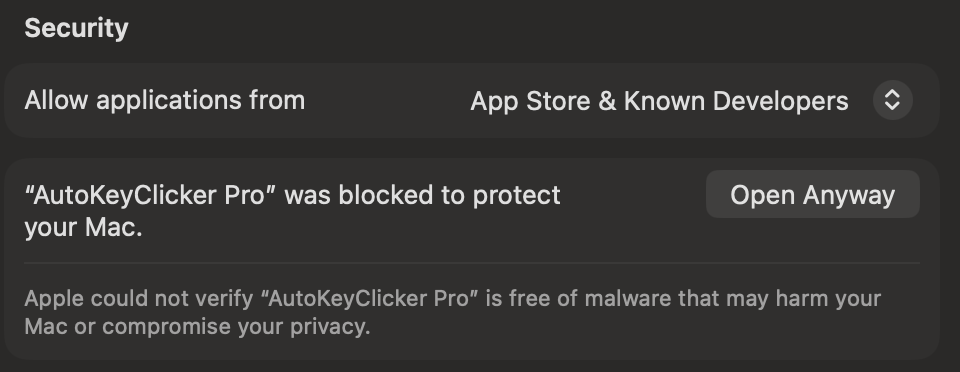
- Open System Settings → Privacy & Security.
- Scroll down to the line about AutoKeyClicker and click Open Anyway.
- macOS asks once more: click Open Anyway and confirm with your Mac password or Touch ID.
On macOS 14 Sonoma or earlier there's a shortcut: Control-click the app in Applications, choose Open, then Open again. On macOS 12 Monterey or earlier, System Settings is called System Preferences, and the button is under Security & Privacy → General.
Two permissions
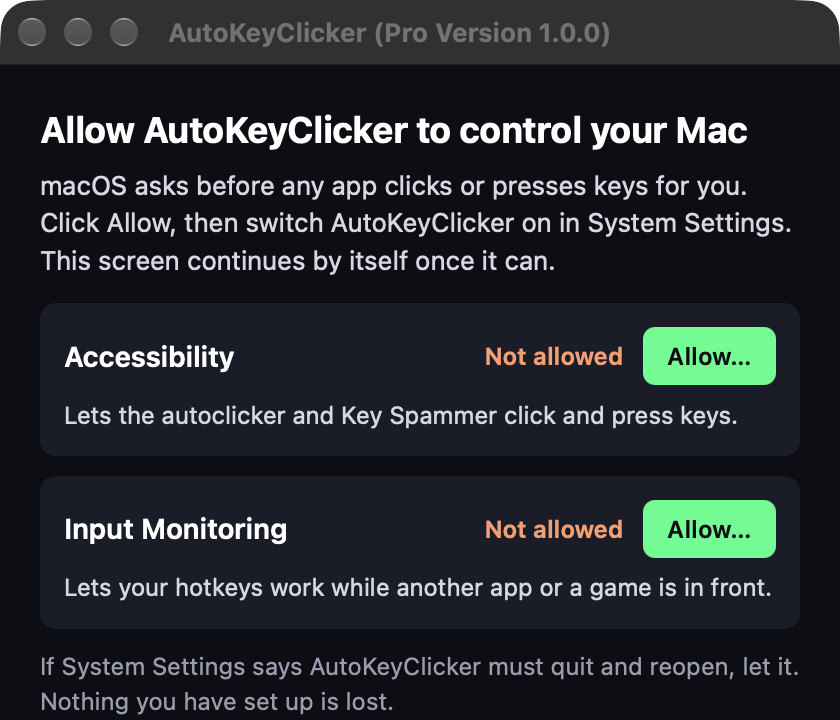
macOS asks before any app clicks or presses keys for you, so on first launch AutoKeyClicker shows a short setup screen with two switches to turn on:
- Accessibility — lets it click and type for you. On the newest macOS this list is called Device Control and Data Access.
- Input Monitoring — lets your hotkeys (F6, F9 and the rest) work while another app is in front.
- Click Allow next to each one. macOS shows its own request; follow it to System Settings.
- In the list there, switch AutoKeyClicker Pro (or Free) on.
- If System Settings says AutoKeyClicker must quit and reopen, let it.
- Back in AutoKeyClicker, the setup screen continues by itself once both are on.
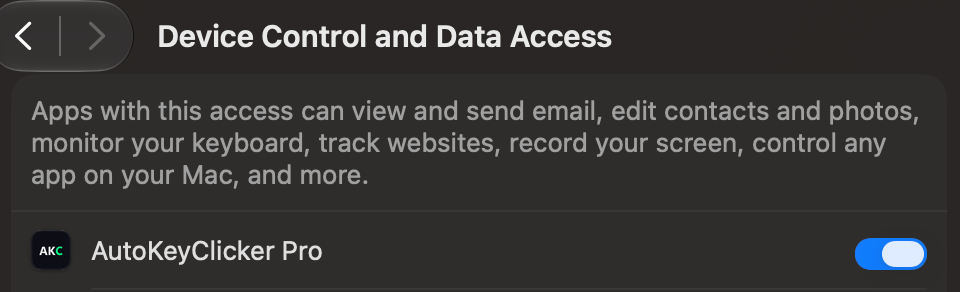
AutoKeyClicker only uses these to do what you set it up to do. It doesn't record what you type outside its own recorder, and it sends nothing about your input anywhere — see the privacy policy.
Updates
AutoKeyClicker checks for a new version when it starts and asks before installing it. The update replaces the app in place and reopens it, and both permissions stay on.
If macOS ever stops trusting it after an update (the setup screen comes back and says so, or still says Not allowed while the switch in System Settings is on), open System Settings → Privacy & Security → Accessibility (Device Control and Data Access on the newest macOS), select AutoKeyClicker, remove it with the − button, and click Allow in the app again.
Your Pro key
The key you bought works on a Mac too, the same as on a PC. A key is tied to one computer, so moving it from a PC to a Mac (or back) uses one of its moves — see License & activation.
AutoKeyClicker Free and Pro on the same Mac share your profiles and settings, so trying Free and then buying Pro loses nothing.
Uninstalling
- Quit AutoKeyClicker, then drag it from Applications to the Trash.
- Optional: to remove your profiles, macros, themes and key as well, delete the folder
~/Library/Application Support/AutoKeyClicker(in Finder: Go → Go to Folder). Keep it if you plan to reinstall. - Optional: remove AutoKeyClicker from the Accessibility and Input Monitoring lists in Privacy & Security with the − button.
Checking the download
Optional. In Terminal, run
shasum -a 256 ~/Downloads/AutoKeyClicker-Pro-Mac.dmg
(or -Free-Mac.dmg) and compare the result with the checksum under the
download buttons on the download page. Only
download AutoKeyClicker from autokeyclicker.app.
Something not working? Email support@autokeyclicker.app or ask on Discord, and include your macOS version (Apple menu → About This Mac).